How to Create a Website Using Divi in 2026 (Step-by-Step)
Step 1: Get Hosting & WordPress
You can't use Divi without WordPress, and you can't use WordPress without hosting. We recommend a host that offers "One-Click WordPress Install" like SiteGround or Flywheel.
Step 2: Install the Divi Theme
Once WordPress is running:
- Go to your dashboard (yoursite.com/wp-admin).
- Navigate to Appearance > Themes > Add New .
- Click Upload Theme and select the `divi.zip` file you downloaded from Elegant Themes.
- Click Install Now and then Activate .
Step 3: Creating Your First Page

Before diving into the visual builder, it is critical to map out your site architecture. Unlike older WordPress themes where you were constrained by rigid templates, Divi is a true visual page builder. This means your "Home" page is completely modular. You can mix and match design elements to perfectly align with your brand's unique value proposition.
Go to Pages > Add New . Give your page a title (e.g., "Home") and click Use Divi Builder .
You'll see three options:
- Build from Scratch: A blank canvas (for pros).
- Choose a Premade Layout: Pick from 2,000+ templates (recommended for beginners).
- Clone Existing Page: Copy a page you already built.
Step 4: The Visual Builder Basics
Divi uses a hierarchy of elements:
- Sections (Blue): The main container.
- Rows (Green): Columns inside sections.
- Modules (Grey): The actual content (Text, Images, Buttons, Forms).
To edit text, just click and type. To change settings, click the Gear Icon on any element.
Step 5: Global Header & Footer
The Global Header and Footer are the foundation of your website's navigation and user experience. A poorly designed header can cost you leads, while a confusing footer can hurt your SEO by burying important legal and contact information.
In 2026, you don't edit headers in a weird settings page. You use the Theme Builder .
- Go to Divi > Theme Builder .
- Click "Add Global Header".
- Build your menu using the standard Divi Builder essentially creating a custom menu visually.
Step 6: Mobile Optimization
Divi creates responsive sites by default, but you should tweak it.
- Click the purple dots at the bottom of the screen.
- Click the Phone Icon to see how your site looks on mobile.
- Adjust text sizes specifically for mobile (click the phone icon next to any setting) without affecting the desktop version.
⚠️ Pro Tip: Speed Optimization
Divi can be heavy. Go to Divi > Theme Options > Performance and enable all Dynamic CSS and JavaScript options. This makes Divi 2026 incredibly fast.
Advanced Performance Optimization for Divi 5.0
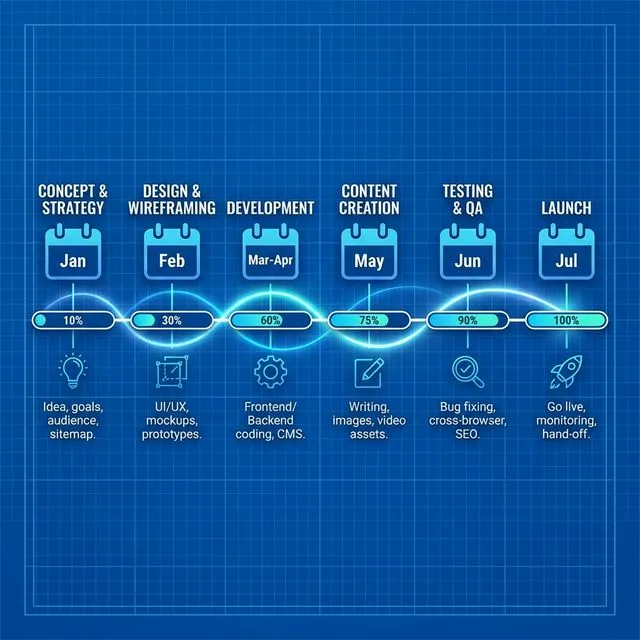
In 2026, Google's Core Web Vitals are more stringent than ever, heavily emphasizing Largest Contentful Paint (LCP) and Interaction to Next Paint (INP). While Divi is incredibly powerful, out-of-the-box page builders can sometimes load unnecessary CSS and JavaScript, causing your site to fail these critical SEO metrics. To counteract this, you must aggressively utilize Divi's built-in performance tools and follow strict structural guidelines.
First, ensure that "Dynamic CSS" and "Dynamic JavaScript" are enabled in the Theme Options. These features ensure that only the code required for the specific modules you are using is loaded on the page, drastically reducing the DOM size. Second, enable "Critical CSS" deferral. This removes render-blocking stylesheets from the header and speeds up the initial paint of the website. Finally, always compress your images to WebP format before uploading them to the Media Library.
Step 7: Leveraging Dynamic Content
One of the most powerful features introduced to Divi is its deep integration with WordPress Dynamic Content. Instead of hardcoding text into a module, you can link a text module directly to a database field, such as the Site Title, the Current Author, or even Custom Post Type (CPT) meta fields created with Advanced Custom Fields (ACF).
- Creating Dynamic Hero Sections: When building a blog post template in the Theme Builder, you do not manually type the title of the post into the header. Instead, you add a Text module, click the "Dynamic Content" icon (it looks like a stack of coins), and select "Post/Archive Title". This tells Divi to automatically pull the correct title from the database whenever that template is loaded.
- Featured Images as Backgrounds: You can apply the same logic to Section backgrounds. By setting a Section's background image to "Featured Image," you ensure that every blog post automatically displays its unique hero image without needing to build a custom header for every single post.
Step 8: Conditional Logic and Display Rules
Modern web design requires personalized user experiences. Divi's Condition Options allow you to show or hide specific Sections, Rows, or Modules based on a complex set of rules. This is how you transform a static brochure website into a dynamic, conversion-optimized machine.
Imagine you are running a special promotion that only applies to users in a specific city, or you want to show a "Welcome Back" message to users who are logged into your site.
- Open the settings of the module you want to control.
- Navigate to the Advanced tab and open the Conditions toggle.
- Add a new condition. You can choose from options like User Role (Logged In vs. Logged Out), Date & Time (for expiring sales), Browser type, or even specific URL parameters.
This feature is particularly potent for local SEO and advertising. If you run a Google Ad targeting "Emergency Plumber in Palmdale," you can append a URL parameter like ?city=palmdale to your ad link. Then, you can use Divi Conditions to display a specific "Palmdale Emergency Dispatch Available" banner only to users who click that ad. This precise intent-matching skyrockets conversion rates.
Conclusion
Building a website used to require coding. With Divi, it's like playing with digital LEGOs. Start with a premade layout, customize the colors to match your brand, and launch!

Written by Brian Smith
Lead Digital Architect, AI Pilots
This technical guide was authored by Brian Smith, drawing on extensive experience developing hundreds of high-performance WordPress websites. At AI Pilots, Brian architects and optimizes complex Divi environments, ensuring they meet rigorous Core Web Vitals standards while delivering exceptional design. This guide reflects proven, production-tested workflows for building scalable, SEO-friendly websites that drive actual business growth.